Showing posts with label customizing. Show all posts

Monday, April 5, 2010

Customizing Firefox 3.6 for Netbooks

Owning a netbook has it advantages, the small 8.9 to 10 inch screen is not one of them. Firefox's default user interface takes up 25% of the vertical space on your netbook. Below is my collection of Firefox 3.6 customizations that will help you reclaim over 20% of your netbook's screen and make Firefox run faster.

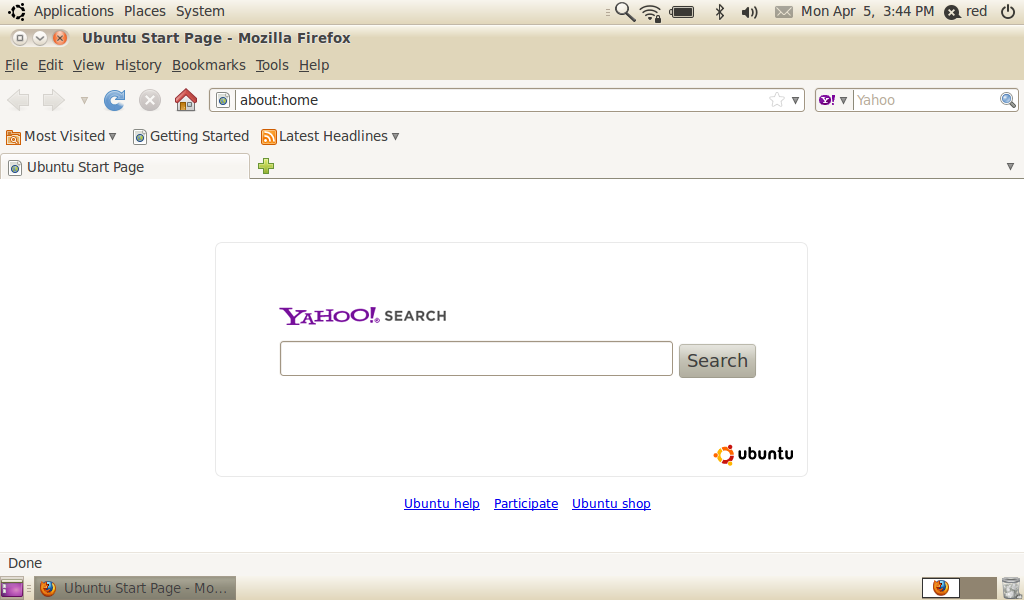
1 - firefox_entire_screen
- Default Firefox 3.6 in Lucid Lynx, notice the wasted space on menus


Remove the Bookmarks Toolbar:
2 - removing_bookmark_bar
- Right click Firefox's blank menu area and un-check the Bookmarks Toolbar


Make The Tool Icons Smaller:

3 - customize
- Right click Firefox's blank menu area and select Customize

4 - use_small_icons
- Check the Use Small Icons box


Remove the Status Bar:

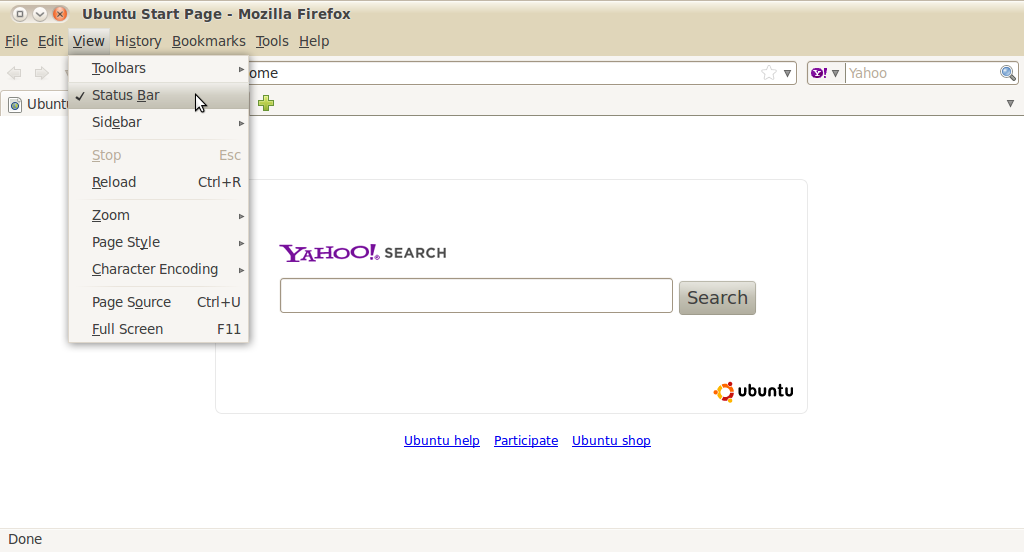
5 - remove_the_status_bar
- Under View un-check the Status Bar Box


Remove The Menu Bar and Make It An Icon:

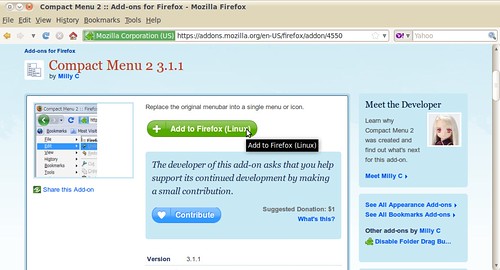
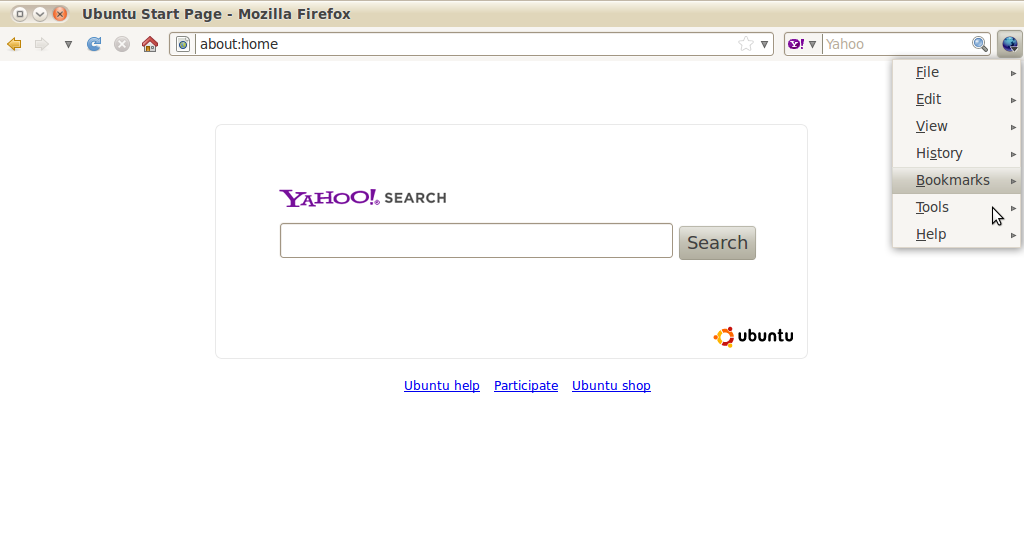
6 - compact_menu_add
- Download the Compact Menu 2 addon

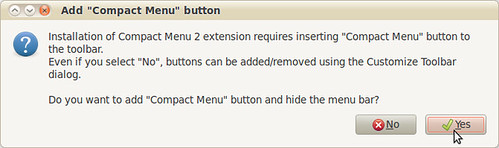
6.5 - compact menu dialog
- Select Yes

7 - compact_menu_installed
- Compact menu 2 replaces your menu bar with a small blue icon

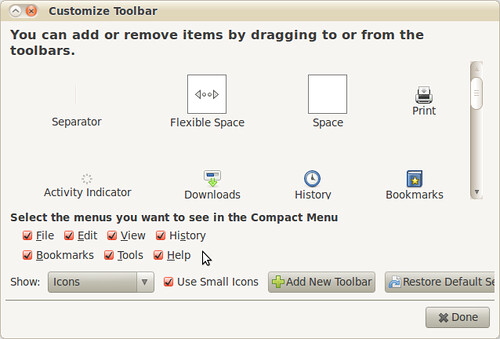
By right clicking the Firefox menu area and selecting Customize, you can configure Compact Menu.
8 - compact_menu_edit


Show The Download Manager as a Tab:
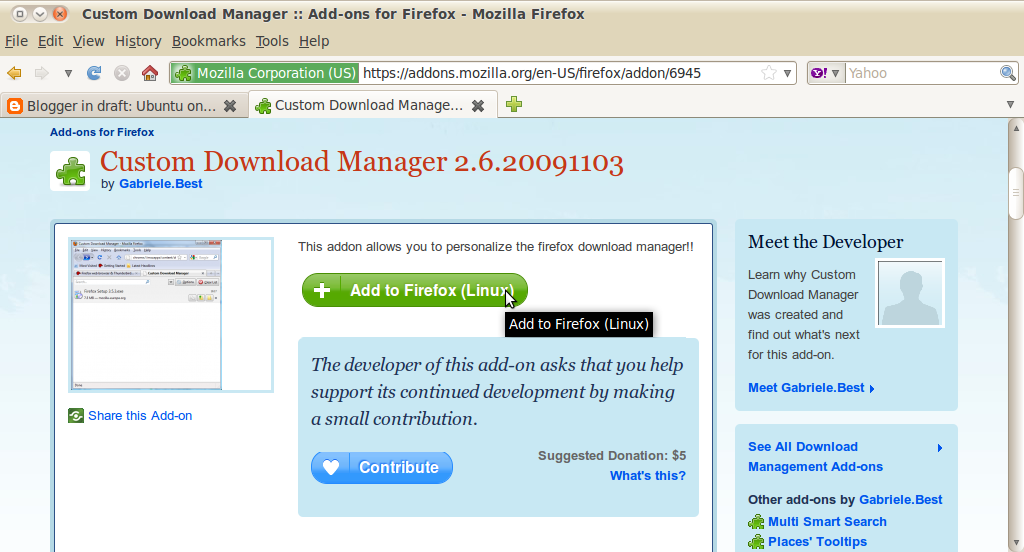
9 -custom_download_manager
- Download the Custom Download Manager addon

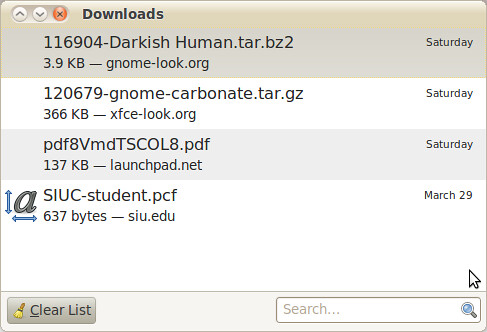
8.5 - old download
- The old download Manger Window

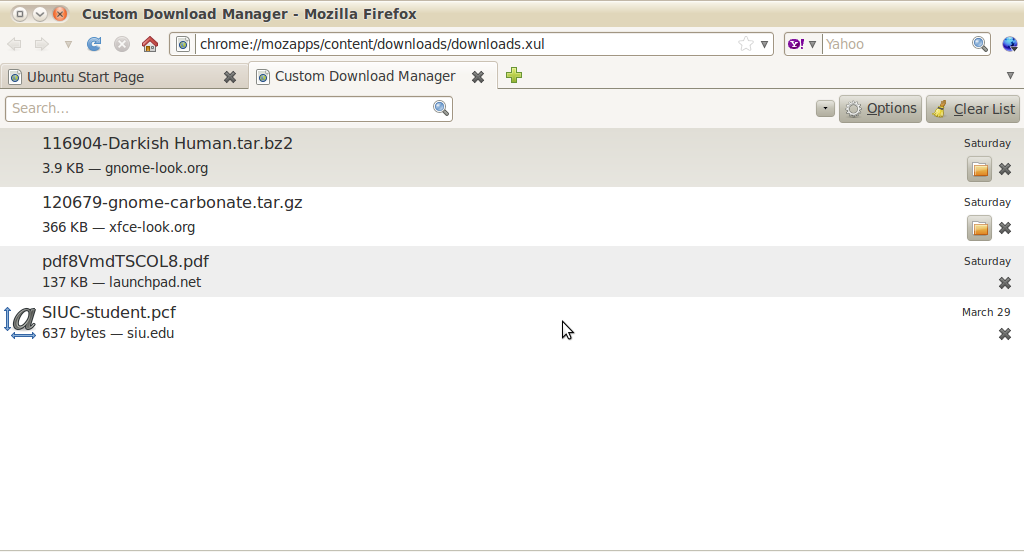
10 - custom_download_manager_in_action
- The tabbed download window

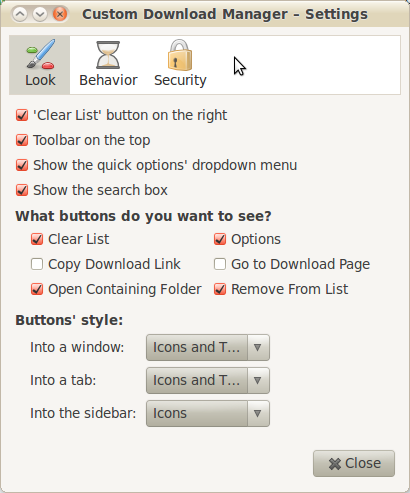
To change any of Custom Download Manager Settings, go to Tools>Addons
11 - download_manager_settings


To access Firefox's Configuration File
Type about:config into the URL address bar
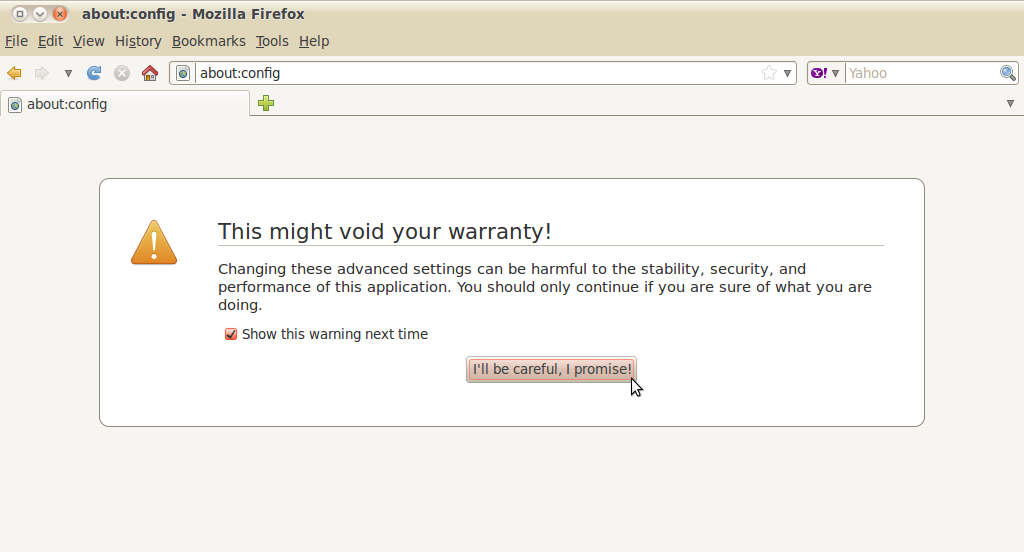
12 - about_config_warnign
- Ignore the warning, and select I'll be careful, I promise

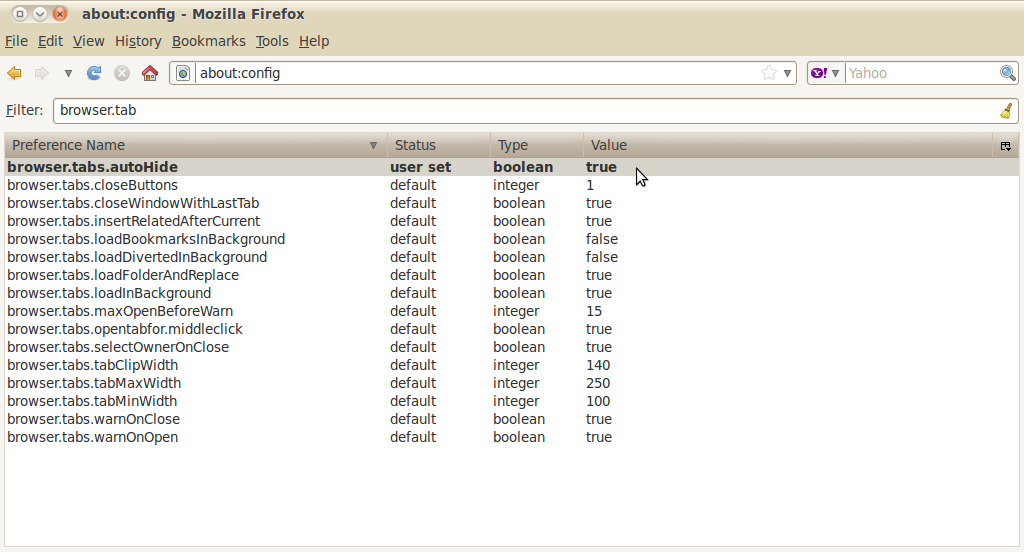
13 - about_config_mainpage
- The main about:config page


Autohide The Tab bar when only displaying a Single Tab:

- Type browser.tabs.autohide into the filter box
- Double click the browser.tabs.autohide entry to set the value to true

14 - browser_tab_autohide
- The constantly displayed tab bar is probably the most annoying "feature" added to Firefox, it's a complete waste of space


Make Firefox Run Faster By Enabling Piplining:
Normally the browser will make one request to a web page at a time. When you enable pipelining, it will make several attempts at once, which really speeds up page loading. It's not very nice to slam websites with multiple requests. Be a good person and limit yourself to a reasonable number.
- Type network.http.pipelining into the filter bar
- Double click the network.http.pipelining entry to set the value to true
- Type network.http.proxy.pipelining into the filter bar
- Double click the network.http.proxy.pipelining entry to set the value to true
- Type network.http.pipelining.maxrequests into the filter bar
- Double click the network.http.pipelining.maxrequests entry and set the maxrequests to 15
- Right-click anywhere inside Firefox about:config page and select New-> Integer
- Name it nglayout.initialpaint.delay and set its value to 0 (zero)


Stop Firefox from Loading Pages in the Background:
Firefox downloads webpages from links it thinks you may click. This may make the experience seem faster but really it just bogs down Firefox and your netbook.
- Type network.prefetch-next into the filter bar
- Double click the network.prefetch-next entry to set it to false


Customize Backspace Button:
The Ubuntu default is set to scroll up when the backspace button is pressed.
I prefer for it to go back in my page history (like it does in Microsoft Windows).
- 0 Pressing backspace button will go back a page in the session history
- 1 Pressing backspace button will scroll up a page in the current document and [Shift]+[Backspace] will scroll down.
- Type browser.backspace_action into the filter bar
- double click the browser.backspace_action entry and set the value to 0

Now that your done you have a lean, mean and fast netbook optimized version of Firefox 3.6
15 - firefox_all_done
- That's a pretty netbook version of Firefox, eat your heart out laptops

Check out my "Best Extensions for Netbooks Guide". (coming soon)

Have a question or problem that this article doesn't cover?
Ask our Ubuntu Mini 9 Google Group for help.

Tuesday, March 2, 2010

Black Human GTK Theme

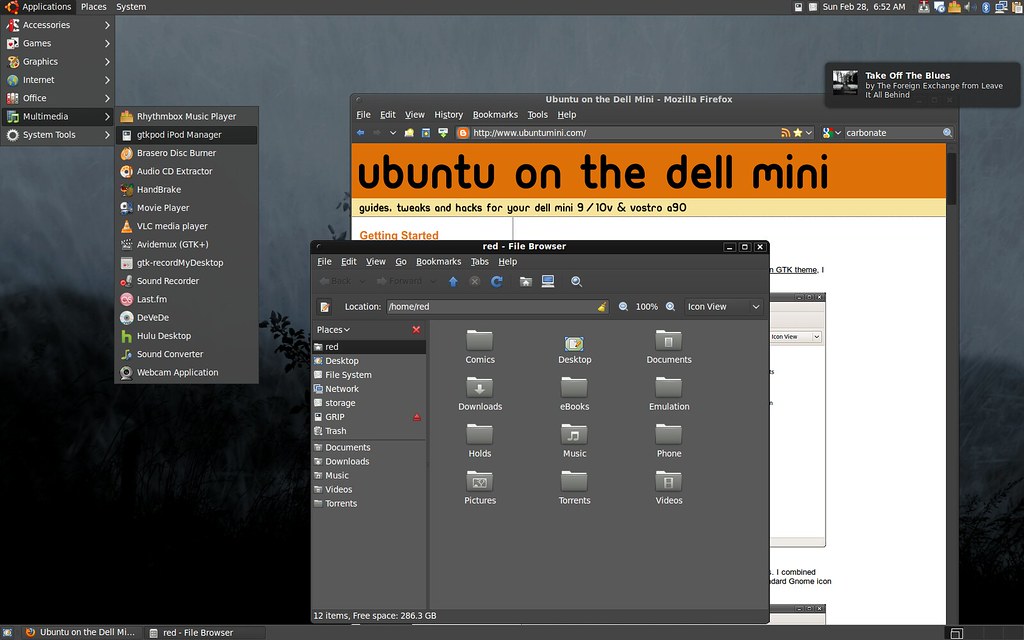
Black Human is based on the Ubuntu Human-Murrine color scheme by Kenneth Wimer & Conn O'Griofa.

Black Human GTK
- click to enlarge

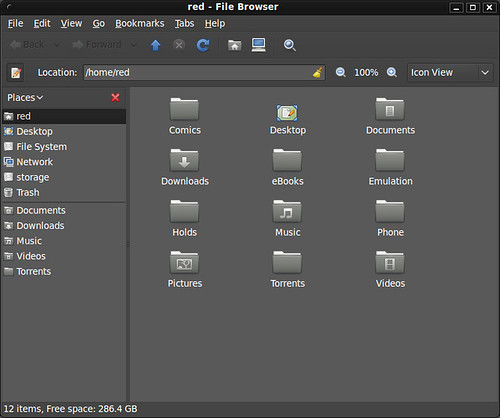
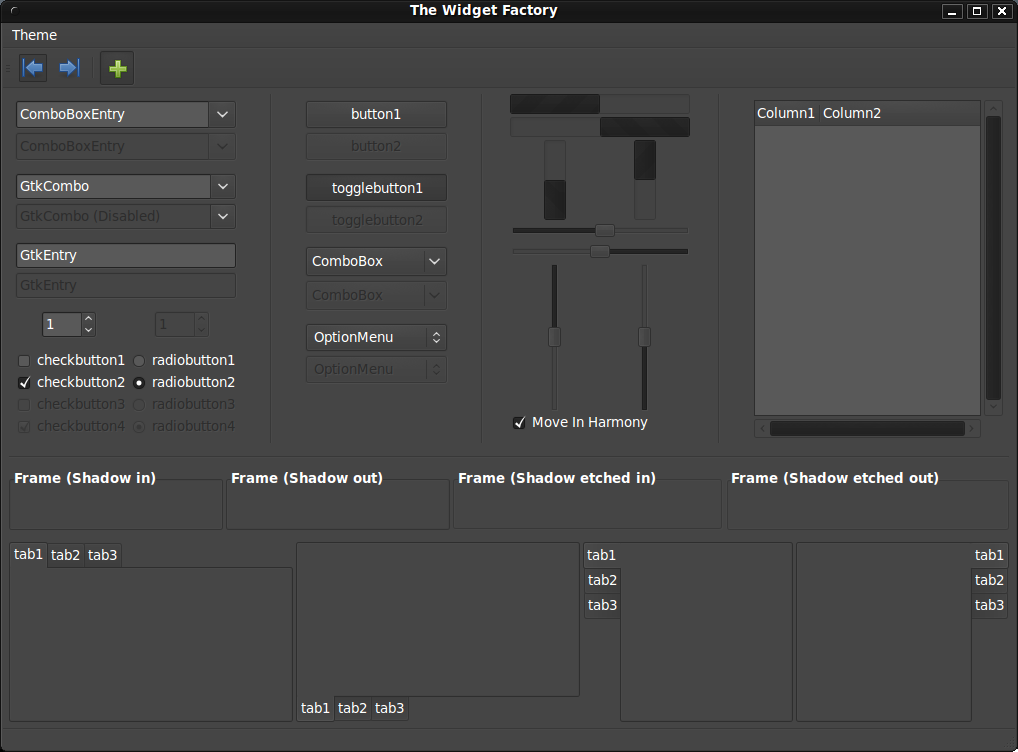
The theme uses gtk2-engines-murrine and my Carbonate icon theme. It was designed to be a black and dark grey take on the default Ubuntu Human theme.

Black Human - folder


Black Human - twf
- click to enlarge

If you'd like to install Black Human, you will first need to install some dependencies.
In a terminal type:
sudo apt-get install gtk2-engines-murrine gnome-colors-common

Also download and install my Carbonate icon theme.
- After downloading the gnome-carbonate.tar.gz, uncompress it and copy to your ~/.icon folder.

To install the Black Human GTK theme:
- Download the Black Human theme via gnomelook.org
- Go to System>Preferences>Appearance.
- Click install and select the Black Human.tar.bz2 file you downloaded

Black Human Install

Black Human does have a few quirks. For directions on tweaking Firefox and OpenOffice to look better when using Black Human, follow the directions on my Black Human Fixes article.

If you link the theme, rate it, share it, and enjoy!


Have a question or problem that this article doesn't cover?
Ask our Ubuntu Mini 9 Google Group for help.

Friday, September 11, 2009

Make Your Root Windows Pretty

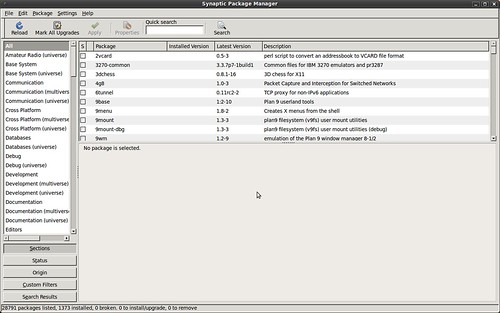
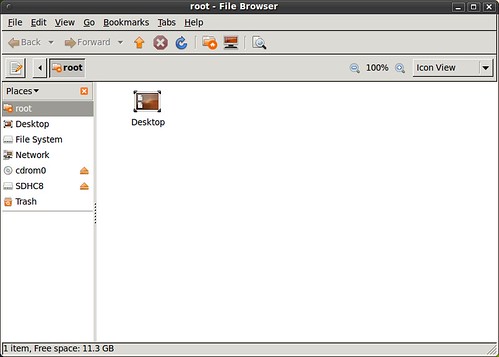
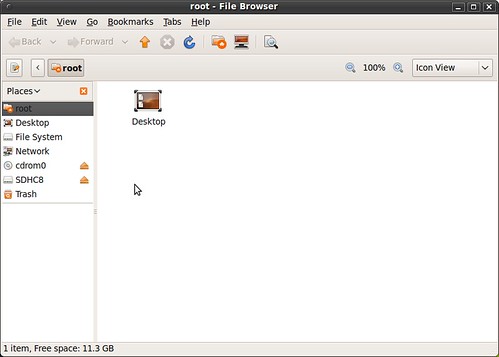
When modfying your system theme the changes often do not apply to the root account. When running programs as the super user (sudo) the window theme looks likea very ugly Windows 95 clone. With two lines of code we are going to link your user and root themes so they match, and bring back the pretty in Ubuntu.

- Notice the Windows 98 feel to these root menus
synaptic (ugly)

root window (ugly)


In a terminal type:
sudo ln -s ~/.themes /root/.themes
sudo ln -s ~/.icons /root/.icons

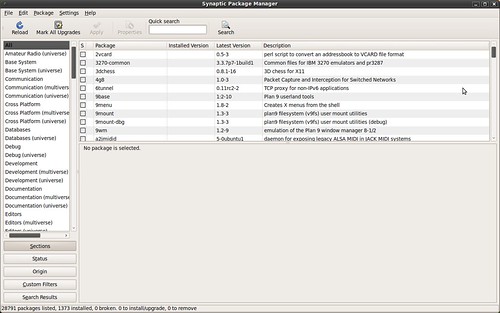
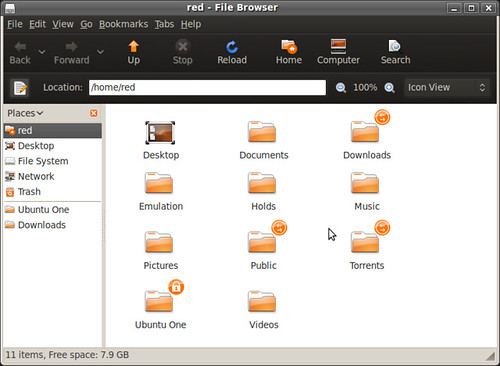
- Now when you run programs as the super user they match the system theme.
synaptic (fixed)

root window (fixed)

and as synthetic098 pointed out:
In a terminal type:
sudo ln -s ~/.fonts /root/.fonts
- to symbolically link your fonts to the root fonts

Have a question or problem that this article doesn't cover?
Ask our Ubuntu Mini 9 Google Group for help.

Saturday, May 23, 2009

Dark Human GTK Theme

My custom GTK theme is nothing fancy. Dark Human is a combination of the included Dust and Human themes with the colors tweaked to compliment the dark gray.

Download My Dark Human Theme

Dark Human with Menu
- the desktop and menus.

Download The Background

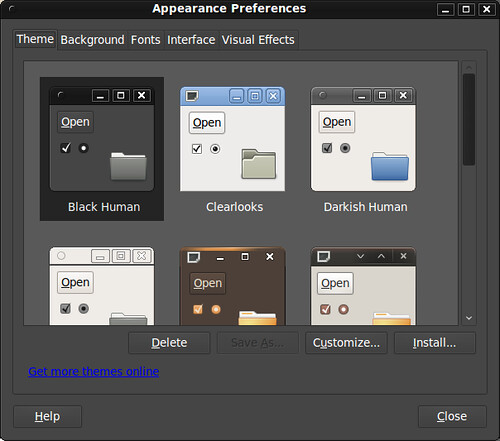
Appearance Preferences
- To install the theme go to System>Preferences>Appearance.
- Click install and select the Dark Human.tar.gz.

home_folder
- Nautilus (still clinging to the orange)

Firefox_screenshot
- The smaller scroll bars and my custom Firefox menu help maximize screen space. You can use this guide to shrink/tweak your Firefox.

my_desktop
- Same setup with Ubuntu Netbook Remix running. It's pretty.

Have a question or problem that this article doesn't cover?
Ask our Ubuntu Mini 9 Google Group for help.

Friday, November 21, 2008

Customizing Firefox for Netbooks

To access Firefox's Configuration File
Type about:config into the URL address bar
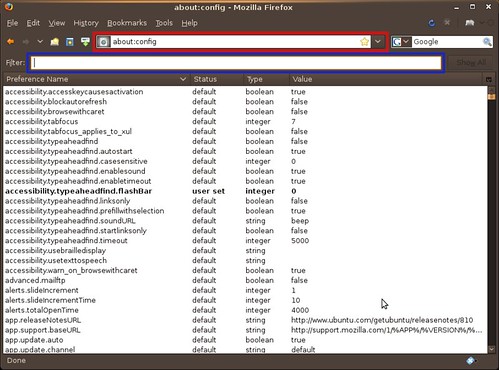
Screenshot-about:config - Mozilla Firefox
The red lines highlight the url box.
The blue lines highlight the filter box.
The filter box allows you to search your about:config file and is where you type the blue text commands.


Make Firefox Run Faster:
Enable Pipelining
Normally the browser will make one request to a web page at a time. When you enable pipelining, it will make several attempts at once, which really speeds up page loading. It's not very nice to slam websites with multiple requests. Be a good person and limit yourself to a reasonable number.
Set network.http.pipelining to true
Set network.http.proxy.pipelining to true
Set network.http.pipelining.maxrequests to 15
Right-click anywhere inside Firefox and select New-> Integer
Name it nglayout.initialpaint.delay and set its value to 0 (zero)

Stop Firefox from Loading Pages in the Background
Firefox downloads webpages from links it thinks you may click. This may make the experience seem faster but really it just bogs down Firefox and your netbook.
Set network.prefetch-next to false

Customize Backspace Button
The Ubuntu default is set to scroll up when the backspace button is pressed.
I prefer for it to go back in my page history.
Set browser.backspace_action to either 0 or 1
0 - Pressing backspace button will go back a page in the session history
1 - Pressing backspace button will scroll up a page in the current document and
[Shift]+[Backspace] will scroll down.

Enable Auto Scrolling & Smooth Scrolling
Go to Edit->Preferences and click Advanced.
Check the auto scrolling and smooth scrolling boxes to enable the middle click/touch pad to scroll smoothly left, right, up and down web pages.
Screenshot-Firefox Preferences


Free Up Screen Space:
Use Small Icons
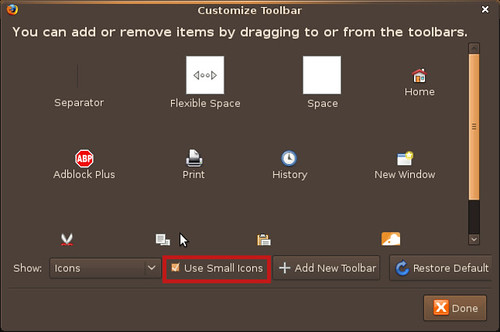
Right click an empty space on the Menubar , Navigational Toolbar or Bookmark Toolbar and select Customize. Check the Use Small Icons box.
Screenshot-Customize Toolbar

Remove the the Bookmark Toolbar
Right click an empty space on the Menubar , Navigational Toolbar or Bookmark Toolbar and uncheck the the Bookmark Toolbar box.
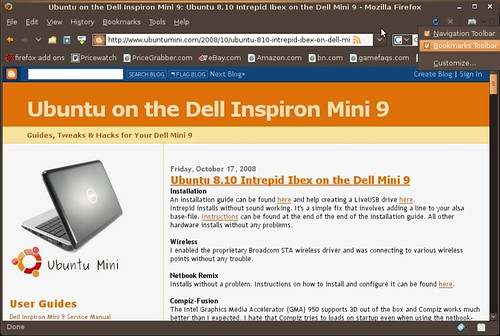
Screenshot-Ubuntu on the Dell Inspiron Mini 9: Ubuntu 8.10 Intrepid Ibex on the Dell Mini 9 - Mozilla Firefox

Remap the Fullscreen Shortcut
If your netbook shipped without an F11 key, like my Dell Mini 9, use this guide to remap maximize to another key.

More screen saving tips can be found in the plugins section below


My Favorite Firefox Plugins for Netbooks:
Foxmarks Bookmark Synchronizer
If you use Firefox on more than one computer, you'll want Foxmarks. Install Foxmarks on each computer, and it will work silently in the background to keep your bookmarks synchronized. You can also log in to my.foxmarks.com to manage your bookmarks from any computer.

Compact Menu 2
Compact Menu 2 allows you to remove Firefox's Menubar and turn it into a drop down toolbar button. Another great plugin that allows you to save screen space.
My install guide can be found here.

Hide Tab Bar
Enables you to hide the tab bar. Another way to keep your screen clear of clutter.

Adblock Plus
Once installed, it's a snap to filter elements at their source-address.
Just right-click: Adblock. Filters use either the wildcard character or full Regular Expression syntax. Hit the status-element and see what has or hasn't been blocked. This plugin is important because loading ads slows down your netbook and takes up screen space.

Adblock Plus: Element Hiding Helper
This is a companion extension to Adblock or Adblock Plus and should be used in conjunction with it. This extension automatically downloads the latest version of Filterset.G every 4-7 days. Filterset.G is an excellent set of filters maintained by G for Adblock that blocks most ads on the internet. In addition, this extension allows you to define your own set of filters that you can add along with Filterset.G during an update. To report missed ads or problems with the extension visit the support forums

Flash Block
Flashblock is an extension for the Mozilla, Firefox, and Netscape browsers that takes a pessimistic approach to dealing with Macromedia Flash content on a webpage and blocks ALL Flash content from loading. It then leaves place-holders on the webpage that allow you to click to download and then view the Flash content. This one is key, I don't want flash objects loading and making noise when I'm mobile/in a meeting. Flashblock speeds up Firefox by not downloading videos you don't plan on watching.

NoScript
Winner of the "2006 PC World World Class Award", this tool provides extra protection to your Firefox. It allows JavaScript, Java and other executable content to run only from trusted domains of your choice, e.g. your home-banking web site, guarding your "trust boundaries" against cross-site scripting attacks (XSS) and Clickjacking attempts, thanks to its unique ClearClick technology. Such a preemptive approach prevents exploitation of security vulnerabilities (known and even unknown!) with no loss of functionality. I really love the speed increase this gives me.

Mouse Gestures Redox
Allows you to execute common commands (like page forward/backward, close tab, new tab) by mouse gestures drawn over the current webpage, without reaching for the toolbar or the keyboard.

GreaseMonkey
Allows you to customize the way a webpage displays using small bits of JavaScript. Hundreds of scripts, for a wide variety of popular sites, are already available at http://userscripts.org. You can write your own scripts, too. Check out http://wiki.greasespot.net/ to get started. This extension does some amazing things, check out for more at http://userscripts.org

Undo Closed Tabs Button
Tired of going to History -> Recently Closed Tabs just to undo a closed tab? Then this extension is for you! This extension allows you to undo closed tabs via a toolbar and/or tab bar button or the right-click context menu.

Custom Download Manager
This addon allows you to personalize your download manager. Now, you can open the download manager on a new tab or on the sidebar. You don't need a popup download manager cluttering your screen.

Tabs Open Relative
Tabs Open Relative makes all new tabs open to the right of the current tab, rather than at the far right of the tab bar. I don't know how I used tabs before this plugin came along.

Open Image In New Tab
Adds right-click context menu item for opening images in new tabs.

Context Search
Expands the context menu's 'Search for' item into a list of installed search engines. Hold Ctrl or middle-click to open results in a new tab, Shift to open a new window.

LittleFox
LittleFox, designed for optimal screen usage, leaving lots of room for browsing. For Firefox 2.0 and 3.0. Includes support for Personas, Forecastfox, Tabbrowser Preferences, Fusion, ReloadEvery, Stumbleupon, Gmail, Basics, Calendar, and many more. I don't use it. LittleFox does do a lot of the screen saving tweaks without having to do any of the work. Perfect for lazy readers.

Digg This Article
digg_64

Have a question or problem that this article doesn't cover?
Ask our Ubuntu Mini 9 Google Group for help.