Showing posts with label firefox. Show all posts

Wednesday, April 21, 2010

Favorite Firefox Addons for Netbooks

Firefox is a netbook's best friend. This is a collection of my favorite Firefox Add-ons. They help free up screen space; stop ads, flash and scripts; add functionality; and make Firefox a secure browsing experience. Firefox > Chromium.

Get Back Your Screen
More tweaks for freeing up screen space. Unless you like squinting and scrolling.

Compact Menu 2
This extension adds the CompactMenu icon to the Navigation Toolbar, and hides the Menubar.
To press the icon or Alt-key then "Menu" open.

autoHideStatusbar
Hides the statusbar. The statusbar is shown back when hovering a "sensitive zone" with the mouse and can be shown back when a page loads or when hovering a link, according to the preferences. Additionally, a statusbar icon and/or a toolbar button can be used to quick enable/disable. hotkey: CTRL-ALT-U (show back the statusbar until a click is made)

Autohide Tabbar 2.0
Auto-hides the tab bar. By moving the mouse to the edge of where the tab bar was, you can make the tab bar show up again.Tab bar can be relocated to the bottom of the main window by the setting in the Options page. So the page you are viewing would not jump up and down when the tab bar is toggled.


Stop Ads, Flash & Scripts
No more wasted bandwidth and slowing down your netbook with ads, flash and scripts you don't want to run/see.

Adblock Plus
Once installed, it's a snap to filter elements at their source-address.
Just right-click: Adblock. Filters use either the wildcard character or full Regular Expression syntax. Hit the status-element and see what has or hasn't been blocked. This plugin is important because loading ads slows down your netbook and takes up screen space.

Adblock Plus: Element Hiding Helper
This is a companion extension to Adblock or Adblock Plus and should be used in conjunction with it. This extension automatically downloads the latest version of Filterset.G every 4-7 days. Filterset.G is an excellent set of filters maintained by G for Adblock that blocks most ads on the internet. In addition, this extension allows you to define your own set of filters that you can add along with Filterset.G during an update. To report missed ads or problems with the extension visit the support forums.

BetterPrivacy
Flash-cookies (Local Shared Objects, LSO) are pieces of information placed on your computer by a Flash plugin. Those Super-Cookies are placed in central system folders and so protected from deletion. They are frequently used like standard browser cookies. Although their thread potential is much higher as of conventional cookies, only few users began to take notice of them. It is of frequent occurrence that -after a time- hundreds of those Flash-cookies reside in special folders. And they won't be deleted - never.

Flash Block
Flashblock is an extension for the Mozilla, Firefox, and Netscape browsers that takes a pessimistic approach to dealing with Macromedia Flash content on a webpage and blocks ALL Flash content from loading. It then leaves place-holders on the webpage that allow you to click to download and then view the Flash content. This one is key, I don't want flash objects loading and making noise when I'm mobile/in a meeting. Flashblock speeds up Firefox by not downloading videos you don't plan on watching.

NoScript
It allows JavaScript, Java and other executable content to run only from trusted domains of your choice, e.g. your home-banking web site, guarding your "trust boundaries" against cross-site scripting attacks (XSS) and Clickjacking attempts, thanks to its unique ClearClick technology.Such a preemptive approach prevents exploitation of security vulnerabilities (known and even unknown!) with no loss of functionality.

YesScript
Unlike NoScript, YesScript does absolutely nothing to improve your security. YesScript strives to remove hassles from your browsing experience, rather than add them. Use YesScript on sites that annoy you or hog your system resources. One click to the icon in the status bar turns scripts on or off for the current site.


Add Functionality to Firefox
You'll wonder how you ever lived without these extensions. I don't remember how I did. The web was a dark, dark, place back then...

Xmarks Bookmark Synchronizer
If you use Firefox on more than one computer, you'll want Xmarks. Install Xmarks on each computer, and it will work silently in the background to keep your bookmarks synchronized. You can also log in to my.xmarks.com to manage your bookmarks from any computer.

Mozilla Weave
Free browser add-on from Mozilla Labs that keeps your bookmarks, saved passwords, browsing history and open tabs backed up and synchronized, with end-to-end encryption for your privacy and security.

Undo Closed Tabs Button
Tired of going to History -> Recently Closed Tabs just to undo a closed tab? Then this extension is for you! This extension allows you to undo closed tabs via a toolbar and/or tab bar button or the right-click context menu.

Tabs Open Relative
Tabs Open Relative makes all new tabs open to the right of the current tab, rather than at the far right of the tab bar. I don't know how I used tabs before this plugin came along.

Open Image In New Tab
Adds right-click context menu item for opening images in new tabs.

Context Search
Expands the context menu's 'Search for' item into a list of installed search engines. Hold Ctrl or middle-click to open results in a new tab, Shift to open a new window.

FirefoxNotify
Provides for integration between Firefox and the Galago project's specification for notifications. This allows for Firefox to integrate better into Linux desktops which support a Galago compatible notification server.

GreaseMonkey
Allows you to customize the way a webpage displays using small bits of JavaScript. Hundreds of scripts, for a wide variety of popular sites, are already available at http://userscripts.org. You can write your own scripts, too. Check out http://wiki.greasespot.net/ to get started. This extension does some amazing things, check out for more at http://userscripts.org.

Easy Youtube Video Downloader
Add buttons to download YouTube videos in FLV, 3GP, MP3, MP4 and 720p HD and 1080p Full-HD qualities. Supports all new 1080p FULL-HD video downloading and works with new Youtube video layout.


Don't Forget to Check Out:
Customizing Firefox for Netbooks.
This guide helps you get the most out of Firefox on your netbook. These tweaks are so easy even a Windows user can do them! Zing!


Have a question or problem that this article doesn't cover?
Ask our Ubuntu Mini 9 Google Group for help.

Monday, April 5, 2010

Customizing Firefox 3.6 for Netbooks

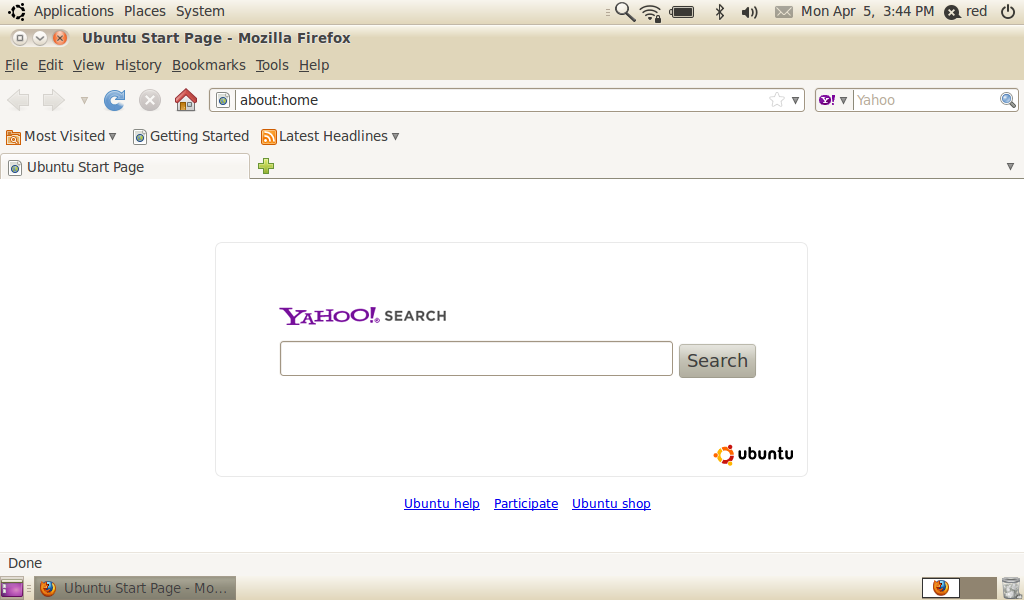
Owning a netbook has it advantages, the small 8.9 to 10 inch screen is not one of them. Firefox's default user interface takes up 25% of the vertical space on your netbook. Below is my collection of Firefox 3.6 customizations that will help you reclaim over 20% of your netbook's screen and make Firefox run faster.

1 - firefox_entire_screen
- Default Firefox 3.6 in Lucid Lynx, notice the wasted space on menus


Remove the Bookmarks Toolbar:
2 - removing_bookmark_bar
- Right click Firefox's blank menu area and un-check the Bookmarks Toolbar


Make The Tool Icons Smaller:

3 - customize
- Right click Firefox's blank menu area and select Customize

4 - use_small_icons
- Check the Use Small Icons box


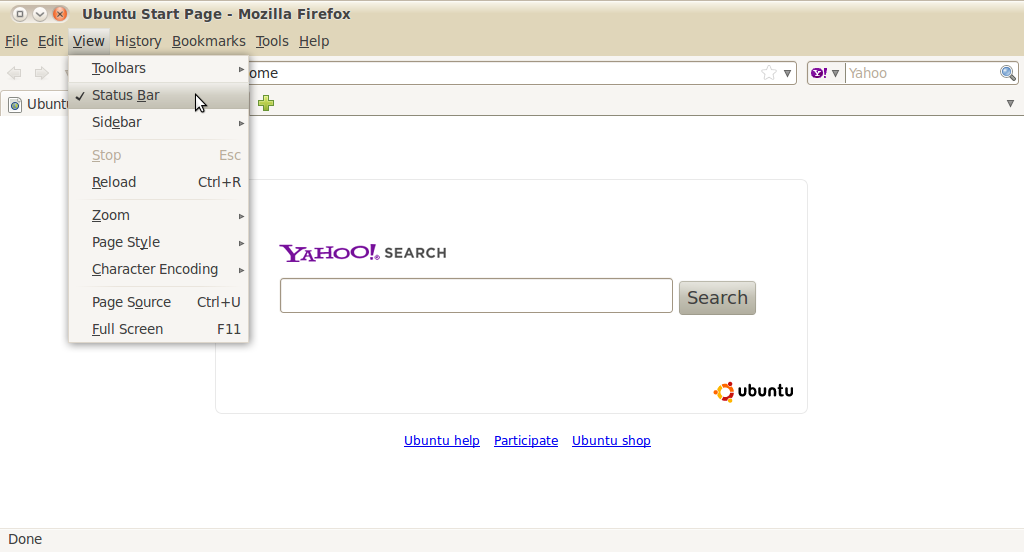
Remove the Status Bar:

5 - remove_the_status_bar
- Under View un-check the Status Bar Box


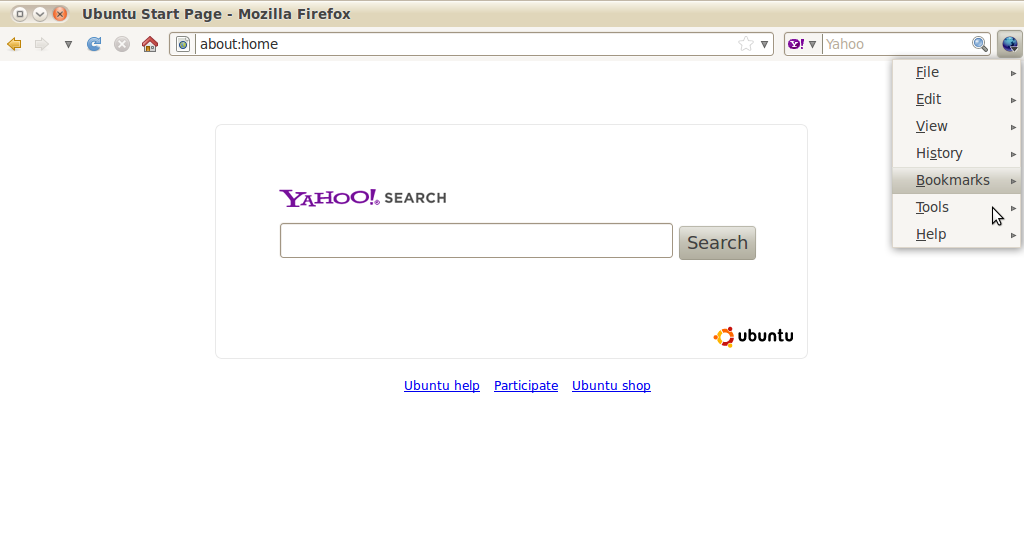
Remove The Menu Bar and Make It An Icon:

6 - compact_menu_add
- Download the Compact Menu 2 addon

6.5 - compact menu dialog
- Select Yes

7 - compact_menu_installed
- Compact menu 2 replaces your menu bar with a small blue icon

By right clicking the Firefox menu area and selecting Customize, you can configure Compact Menu.
8 - compact_menu_edit


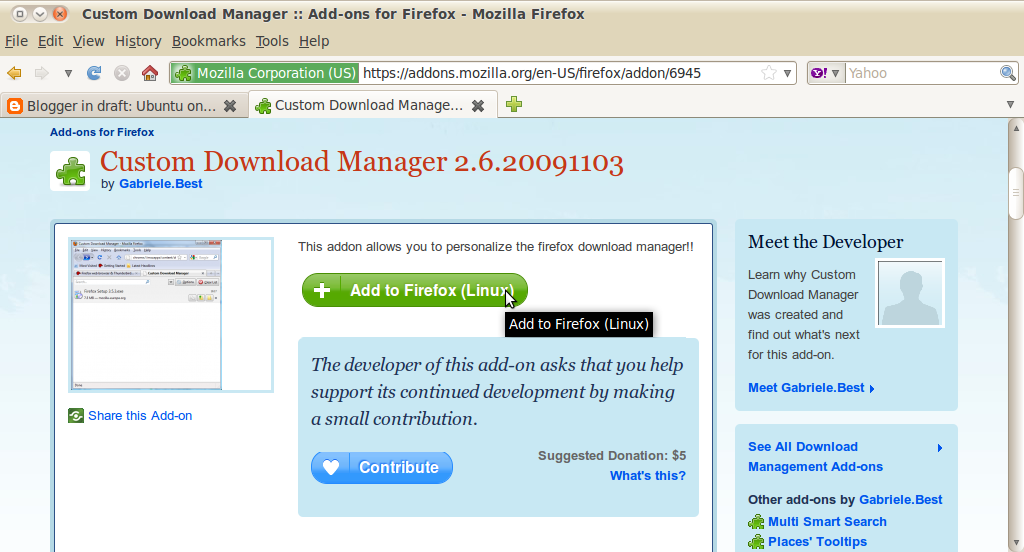
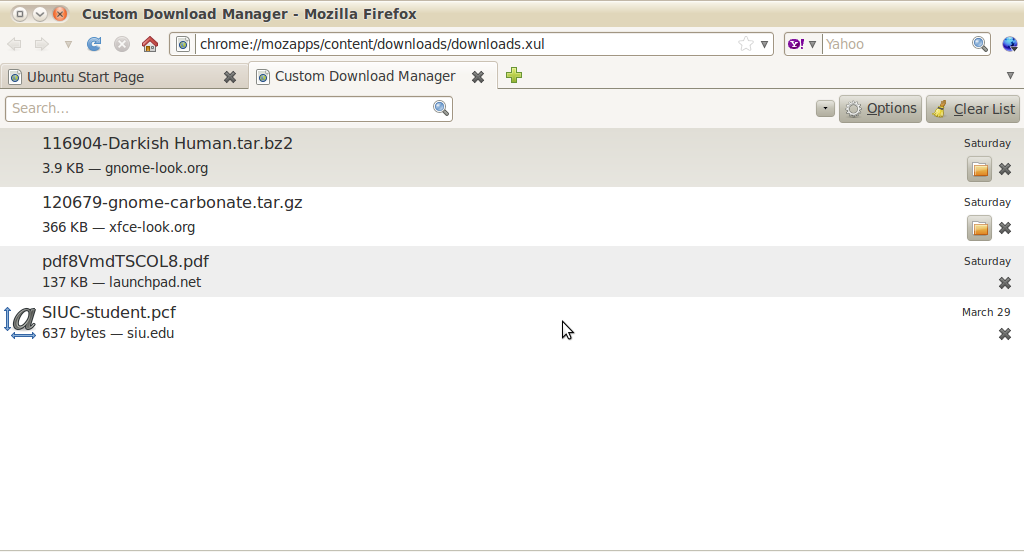
Show The Download Manager as a Tab:
9 -custom_download_manager
- Download the Custom Download Manager addon

8.5 - old download
- The old download Manger Window

10 - custom_download_manager_in_action
- The tabbed download window

To change any of Custom Download Manager Settings, go to Tools>Addons
11 - download_manager_settings


To access Firefox's Configuration File
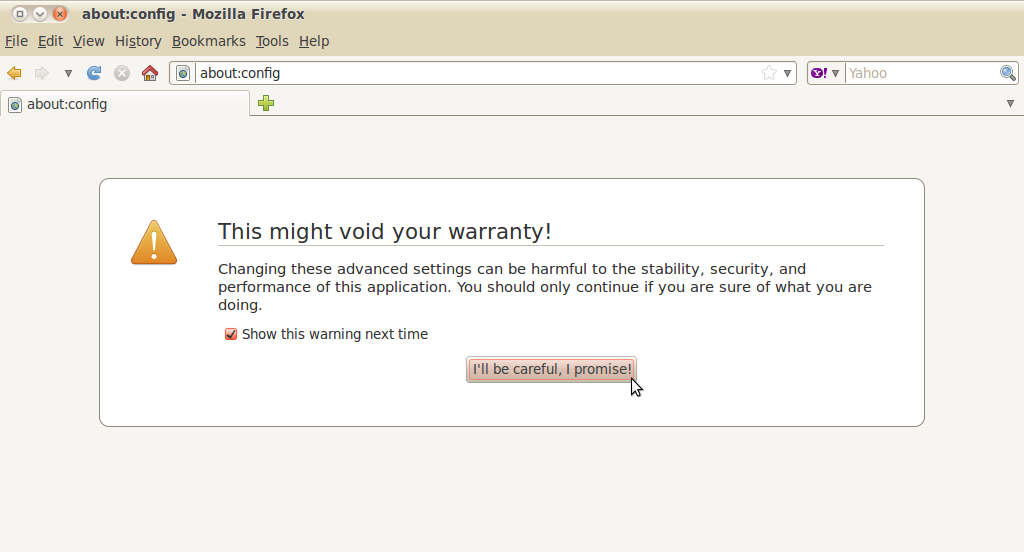
Type about:config into the URL address bar
12 - about_config_warnign
- Ignore the warning, and select I'll be careful, I promise

13 - about_config_mainpage
- The main about:config page


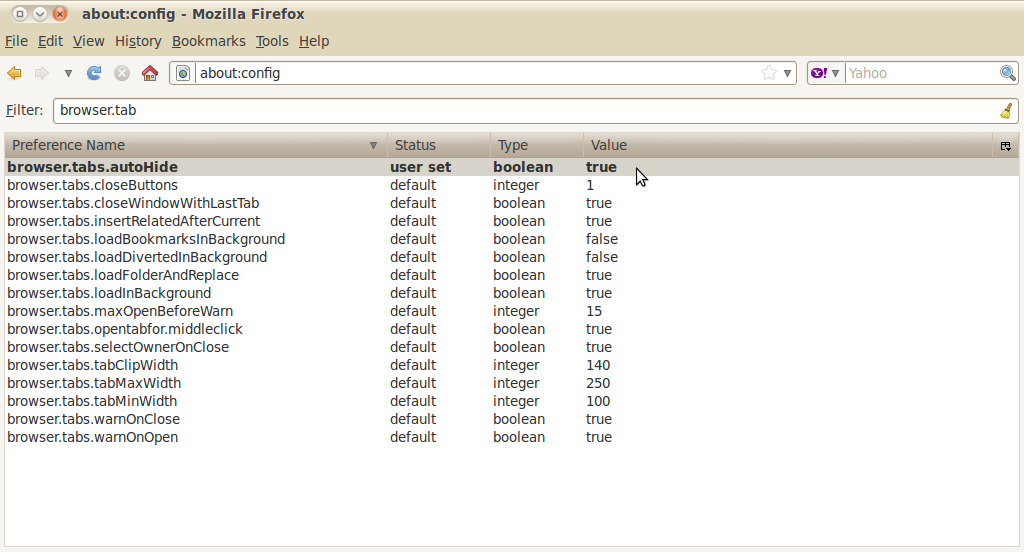
Autohide The Tab bar when only displaying a Single Tab:

- Type browser.tabs.autohide into the filter box
- Double click the browser.tabs.autohide entry to set the value to true

14 - browser_tab_autohide
- The constantly displayed tab bar is probably the most annoying "feature" added to Firefox, it's a complete waste of space


Make Firefox Run Faster By Enabling Piplining:
Normally the browser will make one request to a web page at a time. When you enable pipelining, it will make several attempts at once, which really speeds up page loading. It's not very nice to slam websites with multiple requests. Be a good person and limit yourself to a reasonable number.
- Type network.http.pipelining into the filter bar
- Double click the network.http.pipelining entry to set the value to true
- Type network.http.proxy.pipelining into the filter bar
- Double click the network.http.proxy.pipelining entry to set the value to true
- Type network.http.pipelining.maxrequests into the filter bar
- Double click the network.http.pipelining.maxrequests entry and set the maxrequests to 15
- Right-click anywhere inside Firefox about:config page and select New-> Integer
- Name it nglayout.initialpaint.delay and set its value to 0 (zero)


Stop Firefox from Loading Pages in the Background:
Firefox downloads webpages from links it thinks you may click. This may make the experience seem faster but really it just bogs down Firefox and your netbook.
- Type network.prefetch-next into the filter bar
- Double click the network.prefetch-next entry to set it to false


Customize Backspace Button:
The Ubuntu default is set to scroll up when the backspace button is pressed.
I prefer for it to go back in my page history (like it does in Microsoft Windows).
- 0 Pressing backspace button will go back a page in the session history
- 1 Pressing backspace button will scroll up a page in the current document and [Shift]+[Backspace] will scroll down.
- Type browser.backspace_action into the filter bar
- double click the browser.backspace_action entry and set the value to 0

Now that your done you have a lean, mean and fast netbook optimized version of Firefox 3.6
15 - firefox_all_done
- That's a pretty netbook version of Firefox, eat your heart out laptops

Check out my "Best Extensions for Netbooks Guide". (coming soon)

Have a question or problem that this article doesn't cover?
Ask our Ubuntu Mini 9 Google Group for help.

Tuesday, March 2, 2010

Black Human Fixes

If you have installed my Black Human GTK theme, you'll notice that Firefox input boxes and buttons are dark grey and don't match the rest of the webpage. OpenOffice shares a similar quirk, the document background is dark grey making text hard to read.

Firefox 3 Fix
Black Human Grey Input

Create a userContent.css file
gedit /home/red/.mozilla/firefox/*/chrome/userConent.css

Copy this into the newly created userContent.css file.
/*
* Edit this file and copy it as userContent.css into your
* profile-directory/chrome/
*/

/*
* This file can be used to apply a style to all web pages you view
* Rules without !important are overruled by author rules if the
* author sets any. Rules with !important overrule author rules.
*/

/*
* example: turn off "blink" element blinking
*
* blink { text-decoration: none ! important; }
*
*/

/*
* example: give all tables a 2px border
*
* table { border: 2px solid; }
*/

/*
* example: turn off "marquee" element
*
* marquee { -moz-binding: none; }
*
*/

/*
* For more examples see http://www.mozilla.org/unix/customizing.html
*/
/* Smooth Scrolling Workaround: Disable Fixed Background Images on Pages */
body {
background-attachment: scroll !important;
}

input {
border: 2px inset white;
background-color: white;
color: black;
-moz-appearance: none !important;
}

textarea {
border: 2px inset white;
background-color: white;
color: black;
-moz-appearance: none !important;
}

select {
border: 2px inset white;
background-color: white;
color: black;
-moz-appearance: none !important;
}

input[type="radio"],
input[type="checkbox"] {
border: 2px inset white ! important;
background-color: white ! important;
color: ThreeDFace ! important;
-moz-appearance: none !important;
}

*|*::-moz-radio {
background-color: white;
-moz-appearance: none !important;
}

button,
input[type="reset"],
input[type="button"],
input[type="submit"] {
border: 2px outset white;
background-color: #eeeeee;
color: black;
-moz-appearance: none !important;
}

body {
background-color: white;
color: black;
display: block;
margin: 8px;
-moz-appearance: none !important;
}
Save and exit the file.
You can download my custom css file here.

Black Human Input fix
- Looks much better now


OpenOffice 3 Fix
OpenOffice doesn't look quite right either.
Black Human Open Office - Broken

To get a white document background color instead of dark grey, go to:
Go to Tools>Options, then under OpenOffice.org>Appearance

Black Human Open Office - step
- Under Appearance change the Document Background & Application Background to white.

Now you get a nice clean white background for all your documents.

Black Human Open Office - Fixed


Have a question or problem that this article doesn't cover?
Ask our Ubuntu Mini 9 Google Group for help.

Monday, March 1, 2010

Flash Player 10.1 Beta 3 is Released

Adobe has released Flayer Player 10.1 Beta 3 for 32-bit Linux Machines. If you've been reluctant to install Adobe's previous testing releases, now might be time to switch. The Beta 3 release boosts speed and stability over the Ubuntu repository version of Flash and the 10.1 Beta 2 that was released back in mid-December. Flash is still far from prefect, but it's getting better.

To install Flash Player 10.1 Beta 3 in Linux:
First remove your current version of flash
- If you are using the Ubuntu repository version of Flash
in a terminal type:
sudo apt-get purge flashplugin-installer

- If you are using another version of the Flash Player Beta
rm ~/.mozilla/plugins/libflashplayer.so

- Download Flash 10.1 Beta3
wget http://download.macromedia.com/pub/labs/flashplayer10/flashplayer10_1_p3_linux_022310.tar.gz

- Untar flashplayer10_1_p3_linux_022310.tar.gz
tar -zxvf flashplayer10_1_p3_linux_022310.tar.gz

- Then create a plugin folder in the .mozilla configuration folder
mkdir ~/.mozilla/plugins
(you need to create the plugin folder if your are upgrading from the other Flash beta guides I wrote)

- Install the flash player 10.1 Beta 3 plugin
mv libflashplayer.so ~/.mozilla/plugins

- To remove Flash Player 10.1 Beta 3 and reinstall Ubuntu's repository version of flash
rm -r ~/.mozilla/plugins
then:
sudo apt-get install flashplugin-installer


Have a question or problem that this article doesn't cover?
Ask our Ubuntu Mini 9 Google Group for help.

Thursday, December 24, 2009

Flash Player 10.1 Beta 2 is Released

Adobe has just released Flayer Player 10.1 Beta 2 for 32-bit Linux Machines. I'm enjoying the improvements over the Ubuntu repository version and the 10.1 Beta that was released back in mid-November. Flash is still far from prefect, but at least it's getting better.

- To install Flash Player 10.1 Beta 2 in Linux:
First remove your current version of flash
If you are using the Ubuntu repository version of Flash
in a terminal:
sudo apt-get purge flashplugin-installer

- If you are using the Flash Player 10.1 Beta
rm ~/.mozilla/plugins/libflashplayer.so

- Download Flash 10.1 Beta 2
wget http://download.macromedia.com/pub/labs/flashplayer10/flashplayer10_1_p2_linux_121709.tar.gz

- Untar flashplayer10_1_p2_linux_121709.tar.gz
tar -zxvf flashplayer10_1_p2_linux_121709.tar.gz

- Then create a plugin folder in the .mozilla configuration folder
mkdir ~/.mozilla/plugins
(you can skip this step if your are upgrading from the 10.1 Beta guide I wrote)

- Point the terminal into the newly decompressed file
cd ~/install_flash_player_10_linux

- Install the flash player 10.1 Beta 2 plugin
mv libflashplayer.so ~/.mozilla/plugins

- To remove Flash Player 10.1 Beta 2 and reinstall Ubuntu's repository version of flash
rm -r ~/.mozilla/plugins
then:
sudo apt-get install flashplugin-installer


Have a question or problem that this article doesn't cover?
Ask our Ubuntu Mini 9 Google Group for help.

Tuesday, November 17, 2009

Flash Player 10.1 Beta is Released

Adobe has just released Flayer Player 10.1 Beta for 32-bit Linux Machines. While 10.1 Beta is not the release that will fix users flasher player woes in Linux, it will offer better playback, bug fixes and greater compatibility for flash content on the web.

From Adobe's Press Release:
This is a developer prerelease version of the Adobe® Flash® Player 10.1 software for Windows, Macintosh and Linux. It is being made available for developers to test their content to ensure new features function as expected, existing content plays back correctly, and there are no compatibility issues. Consumers can try the beta release of Flash Player 10.1 to preview hardware acceleration of video on supported Windows PCs and x86-based netbooks.


To Install Flash Player 10.1 Beta in Linux:
- Close Firefox

- Download Flash 10.1.
wget http://download.macromedia.com/pub/labs/flashplayer10/flashplayer10_1_p1_linux_111709.tar.gz

- After downloading you need to uninstall Ubuntu's version of Flash
sudo apt-get purge flashplugin-installer

- Then create a plugin folder in the .mozilla configuration folder.
mkdir ~/.mozilla/plugins

- Untar flashplayer10_1_p1_linux_111709.tar.gz
in a terminal type:
tar -zxvf flashplayer10_1_p1_linux_111709.tar.gz

- Point the terminal into the newly decompressed file
cd ~/install_flash_player_10_linux

- Install the flash player 10.1 beta plugin
In a terminal type:
mv libflashplayer.so ~/.mozilla/plugins

- To remove Flash Player 10.1 Beta and reinstall Ubuntu's repository version of flash
Delete the plugins folder in the .mozilla folder
In a terminal type:
sudo apt-get install flashplugin-installer

Leave a comment letting readers now how the upgrade worked for you.


Have a question or problem that this article doesn't cover?
Ask our Ubuntu Mini 9 Google Group for help.

Sunday, September 13, 2009

Set Gmail As Your Default Mail Client In Firefox

I do not use Kmail, Evolution or Thunderbird on my netbook. So when I click an email link in Firefox, I get sent to the Evolution's setup screen. This guide will show you how to setup Gmail as you default email application in Firefox. That way, when you click a mailto link (or any email link) Firefox will open it with Gmail. *Note: this only works in Firefox 3.0 and above.

1. Go to Gmail and sign in.

2. While in Gmail, copy and paste the code below into Firefox's address bar and hit enter.
gmail_url_mailto
javascript:window.navigator.registerProtocolHandler("mailto","https://
mail.google.com/mail/?extsrc=mailto&url=%s","Gmail")


3. A bar will appear under the URL bar, click "Add Application"
add_bar_mailto
- to add Gmail as an application for mailto links.

4. Then go to Edit>Preferences
switch mailto
- In the Application tab, under mailto select use Gmail


Have a question or problem that this article doesn't cover?
Ask our Ubuntu Mini 9 Google Group for help.

Monday, June 29, 2009

Install Firefox 3.5

Firefox 3.5 has some great features planned. As of the time this article was written it is still in development and some plugins do not work or conflict with new features. If you'd like try out Firefox 3.5 before it's officially included in Ubuntu, there is a is a Personal Package Archives (PPA) with a daily build of Firefox 3.5 that makes installation easy. To install Firefox 3.5, codenamed Shiretoko, you have to add the PPA and its key to your repositories.

Add the PPA To Your Repository:
- Go to the Mozilla Daily PPA Page
- Select the correct packages for your version of Ubuntu (8.04, 8.10, 9.04, 9.10)
the_right_repo
- Copy the Mozilla daily repository to your source list
in a terminal:
sudo gedit /etc/apt/sources.list
adding the dialy ppa
- save and exit

Add the Repository Key:
- copy the key from this public key server page
key_web
- paste it into a text file

ppa_key_file
- save and exit

- Go to Software Sources (System->Administration->Software Sources)
import the key
- Under the Authentication Tab select "+ Import Key File..."
- Navigate to where you have saved the PPA key. *This will leave you in the root area of your hard disk, if you saved the key in your Home folder you will have to navigate from your File System->Home->user folder

Update your Repositories
in a terminal type:
sudo apt-get update

Install Firefox 3.5
sudo apt-get install firefox-3.5 firefox-3.5-branding firefox-3.5-gnome-support xulrunner-1.9.1 xulrunner-1.9.1-gnome-support

It will install under it's development name Shiretoko, in Applications->Internet

Have a question or problem that this article doesn't cover?
Ask our Ubuntu Mini 9 Google Group for help.

Sunday, May 24, 2009

Have Firefox Use Ubuntu's Notification System

old_notification_system
- Firefox's notifications are not very elegant. They do not use the operating systems native notification system and stick out like a sore thumb.
- This guide will configure Firefox to use Ubuntu's notification system.
- The plugin used works for all versions of Ubuntu, not just 9.04 Jaunty Jackalope.

Step 1: Disable The Old Notification System
In Firefox's URL bar type about:config
about_config_warning
- ignore the warning message

about_config_false
- Type browser.download.manager.showAlertOnComplete in the filter bar.
- Set the Value to false

Step 2: Download The FirefoxNotify Plugin
add_ons_plugin
- You must check the"Let me install this experimental add-on" box to download the add-on.

Step 3: Restart Firefox
new_notification
- Now Firefox will use Ubuntu's notification system.

Have a question or problem that this article doesn't cover?
Ask our Ubuntu Mini 9 Google Group for help.

Friday, November 21, 2008

Customizing Firefox for Netbooks

To access Firefox's Configuration File
Type about:config into the URL address bar
Screenshot-about:config - Mozilla Firefox
The red lines highlight the url box.
The blue lines highlight the filter box.
The filter box allows you to search your about:config file and is where you type the blue text commands.


Make Firefox Run Faster:
Enable Pipelining
Normally the browser will make one request to a web page at a time. When you enable pipelining, it will make several attempts at once, which really speeds up page loading. It's not very nice to slam websites with multiple requests. Be a good person and limit yourself to a reasonable number.
Set network.http.pipelining to true
Set network.http.proxy.pipelining to true
Set network.http.pipelining.maxrequests to 15
Right-click anywhere inside Firefox and select New-> Integer
Name it nglayout.initialpaint.delay and set its value to 0 (zero)

Stop Firefox from Loading Pages in the Background
Firefox downloads webpages from links it thinks you may click. This may make the experience seem faster but really it just bogs down Firefox and your netbook.
Set network.prefetch-next to false

Customize Backspace Button
The Ubuntu default is set to scroll up when the backspace button is pressed.
I prefer for it to go back in my page history.
Set browser.backspace_action to either 0 or 1
0 - Pressing backspace button will go back a page in the session history
1 - Pressing backspace button will scroll up a page in the current document and
[Shift]+[Backspace] will scroll down.

Enable Auto Scrolling & Smooth Scrolling
Go to Edit->Preferences and click Advanced.
Check the auto scrolling and smooth scrolling boxes to enable the middle click/touch pad to scroll smoothly left, right, up and down web pages.
Screenshot-Firefox Preferences


Free Up Screen Space:
Use Small Icons
Right click an empty space on the Menubar , Navigational Toolbar or Bookmark Toolbar and select Customize. Check the Use Small Icons box.
Screenshot-Customize Toolbar

Remove the the Bookmark Toolbar
Right click an empty space on the Menubar , Navigational Toolbar or Bookmark Toolbar and uncheck the the Bookmark Toolbar box.
Screenshot-Ubuntu on the Dell Inspiron Mini 9: Ubuntu 8.10 Intrepid Ibex on the Dell Mini 9 - Mozilla Firefox

Remap the Fullscreen Shortcut
If your netbook shipped without an F11 key, like my Dell Mini 9, use this guide to remap maximize to another key.

More screen saving tips can be found in the plugins section below


My Favorite Firefox Plugins for Netbooks:
Foxmarks Bookmark Synchronizer
If you use Firefox on more than one computer, you'll want Foxmarks. Install Foxmarks on each computer, and it will work silently in the background to keep your bookmarks synchronized. You can also log in to my.foxmarks.com to manage your bookmarks from any computer.

Compact Menu 2
Compact Menu 2 allows you to remove Firefox's Menubar and turn it into a drop down toolbar button. Another great plugin that allows you to save screen space.
My install guide can be found here.

Hide Tab Bar
Enables you to hide the tab bar. Another way to keep your screen clear of clutter.

Adblock Plus
Once installed, it's a snap to filter elements at their source-address.
Just right-click: Adblock. Filters use either the wildcard character or full Regular Expression syntax. Hit the status-element and see what has or hasn't been blocked. This plugin is important because loading ads slows down your netbook and takes up screen space.

Adblock Plus: Element Hiding Helper
This is a companion extension to Adblock or Adblock Plus and should be used in conjunction with it. This extension automatically downloads the latest version of Filterset.G every 4-7 days. Filterset.G is an excellent set of filters maintained by G for Adblock that blocks most ads on the internet. In addition, this extension allows you to define your own set of filters that you can add along with Filterset.G during an update. To report missed ads or problems with the extension visit the support forums

Flash Block
Flashblock is an extension for the Mozilla, Firefox, and Netscape browsers that takes a pessimistic approach to dealing with Macromedia Flash content on a webpage and blocks ALL Flash content from loading. It then leaves place-holders on the webpage that allow you to click to download and then view the Flash content. This one is key, I don't want flash objects loading and making noise when I'm mobile/in a meeting. Flashblock speeds up Firefox by not downloading videos you don't plan on watching.

NoScript
Winner of the "2006 PC World World Class Award", this tool provides extra protection to your Firefox. It allows JavaScript, Java and other executable content to run only from trusted domains of your choice, e.g. your home-banking web site, guarding your "trust boundaries" against cross-site scripting attacks (XSS) and Clickjacking attempts, thanks to its unique ClearClick technology. Such a preemptive approach prevents exploitation of security vulnerabilities (known and even unknown!) with no loss of functionality. I really love the speed increase this gives me.

Mouse Gestures Redox
Allows you to execute common commands (like page forward/backward, close tab, new tab) by mouse gestures drawn over the current webpage, without reaching for the toolbar or the keyboard.

GreaseMonkey
Allows you to customize the way a webpage displays using small bits of JavaScript. Hundreds of scripts, for a wide variety of popular sites, are already available at http://userscripts.org. You can write your own scripts, too. Check out http://wiki.greasespot.net/ to get started. This extension does some amazing things, check out for more at http://userscripts.org

Undo Closed Tabs Button
Tired of going to History -> Recently Closed Tabs just to undo a closed tab? Then this extension is for you! This extension allows you to undo closed tabs via a toolbar and/or tab bar button or the right-click context menu.

Custom Download Manager
This addon allows you to personalize your download manager. Now, you can open the download manager on a new tab or on the sidebar. You don't need a popup download manager cluttering your screen.

Tabs Open Relative
Tabs Open Relative makes all new tabs open to the right of the current tab, rather than at the far right of the tab bar. I don't know how I used tabs before this plugin came along.

Open Image In New Tab
Adds right-click context menu item for opening images in new tabs.

Context Search
Expands the context menu's 'Search for' item into a list of installed search engines. Hold Ctrl or middle-click to open results in a new tab, Shift to open a new window.

LittleFox
LittleFox, designed for optimal screen usage, leaving lots of room for browsing. For Firefox 2.0 and 3.0. Includes support for Personas, Forecastfox, Tabbrowser Preferences, Fusion, ReloadEvery, Stumbleupon, Gmail, Basics, Calendar, and many more. I don't use it. LittleFox does do a lot of the screen saving tweaks without having to do any of the work. Perfect for lazy readers.

Digg This Article
digg_64

Have a question or problem that this article doesn't cover?
Ask our Ubuntu Mini 9 Google Group for help.