Showing posts with label gconf. Show all posts

Tuesday, April 20, 2010

Move The Window Buttons To The Right

Is Ubuntu 10.04 left side window button placement driving you crazy? You're not the only one. I'm so used to the buttons being on the right side, I can't make the adjustment. I sick of clicking a blank right menu bar. The fix is simple:


To Move The Window Buttons To The Right
Bring up the Run Application box with Alt + F2
mini/vostro users will have to press Fn+Alt+F2(hint: it's the S key)
type gconf-editor and press Run

run_box

In the gconf-editor
Go to Apps>Metacity>General
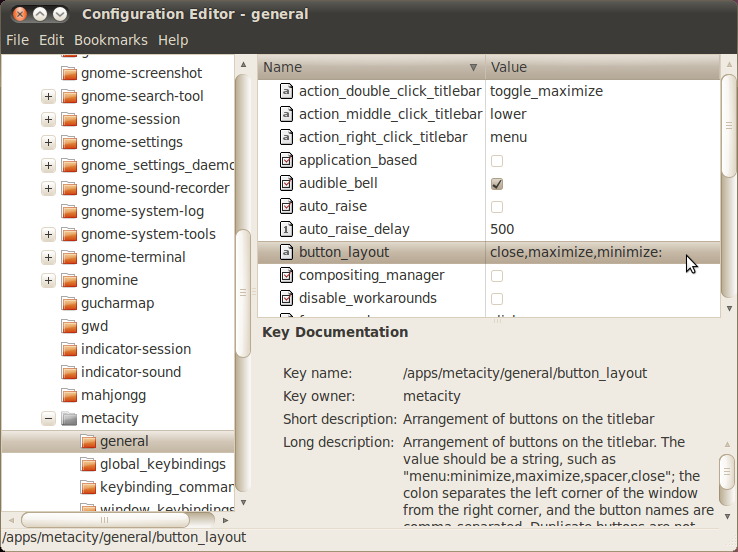
gconf_editor

In the button_layout field type:
menu:maximize,minimize,close

edit_buttons
- this will place the window buttons on the right, where they belong.

Feel free to customize the buttons if you want to change the order. I know some users actually prefer the Ubuntu 10.04 Alpha testing left side window buttons placement of minimize,maximize,close.

Have a question or problem that this article doesn't cover?
Ask our Ubuntu Mini 9 Google Group for help.

Tuesday, November 25, 2008

Stop Compiz-Fusion From Loading Automatically

You do not want to run Compiz and Netbook Remix at the same time.

Compiz is the default window manager when you install Ubuntu. This guide will show you how to stop Compiz-Fusion from loading automatically on startup and make Metacity your default window manager.

Step 1: Run gconf-edit
Start Run Application by pressing Alt+F2

Screenshot-Run Application

Enter gconf-editor into the box, hit enter


Step 2: Set Metacity as your default start up window manager
Once in gconf-editor navigate to desktop>gnome>applications>window_manager
Screenshot-Configuration Editor - window_manager

under default replace:
/usr/bin/compiz with /usr/bin/metacity

it should like this when you're done:
Screenshot-Configuration Editor - window_manager
*If you see /usr/bin/metacity after you navigate gconf-editor, don't worry. Compiz wasn't loading automatically and you don't have to do anything else.

Have a question or problem that this article doesn't cover?
Ask our Ubuntu Mini 9 Google Group for help.